Groove Generator Lite Guide
A quick tutorial for the Drumset Groove Generator. Want the whole system? Get the full User Guide.
By Patrick R. F. Blakley
What the Groove Generator does
The Adaptive Drumset Groove Generator builds drum grooves on a 16th note grid. Each 16th note for each instrument is either a note or a rest. With no rules applied, that choice is a coin flip, which gives you wild, unpredictable patterns.
The checkboxes are what make it useful. Each one is a musical rule, like “8th note hihat,” “backbeats on 2 and 4,” or “no bass drum under snare notes.” Pick the rules that match the skill you want to work on, and every groove the generator makes will stay inside those rules while still changing every time you click. You are designing the exercise; the generator writes endless versions of it.
Every groove is written out as standard drumset sheet music, and you can also view it as an easy-to-read grid. Press Play to hear it at any tempo before you sit down to play it.
Who it's for
- Drum teachers: check the boxes for the skill a student needs, then click New Groove for a fresh example whenever you need one. The lesson material writes itself around your focus, and you can make it easier or harder on the spot.
- Drum students: pick a level or a skill and practice it with new material every time, instead of memorizing the same few exercises. Playback lets you hear how each groove should sound.
- Drumset players and composers: beat writer's block and break out of the same old patterns. Set the feel you want, match the tempo to your song, and audition groove ideas in seconds.
Quick start
- Open DrumSetGrooves.com in any web browser on a computer, tablet or phone. There's nothing to download, no account to create, and no Google sign-in.
- Click the orange New Groove button. A groove appears under the words “Now play this!”
- Press Play to hear it. Slide the tempo down until it feels comfortable, then play along.
- Keep clicking New Groove for new variations, or change the checkboxes to change what kind of grooves you get.
Free version vs. full version
Anyone can use the free version. The full version unlocks everything else with a one-time purchase, and it is also included with the printed User Guide.
| Feature | Free | Full |
|---|---|---|
| Sheet music, grid view, playback, metronome and printing | ✓ | ✓ |
| Quarter note or 8th note hihat with backbeats | ✓ | ✓ |
| 8th note bass drum, or bass drum on 1 & 3 | ✓ | ✓ |
| Level 0 and Level 1 starting points | ✓ | ✓ |
| 16th note, triplet, shuffle, 3-note group and jazz hihat patterns; half-time snare and blast beats; 16th note bass drum | — | ✓ |
| 25+ enhancements: ghost notes, open hihats, ride and bell, double bass, left foot hihat and more | — | ✓ |
| 3/4, 2/4, 7/8, 5/8 and 3/8 | — | ✓ |
| Level 2–6 starting points and random linear grooves | — | ✓ |
Anything that belongs to the full version is marked “Full version” on the page. Click any of those items, or the yellow Unlock Full Version button, to see your options.
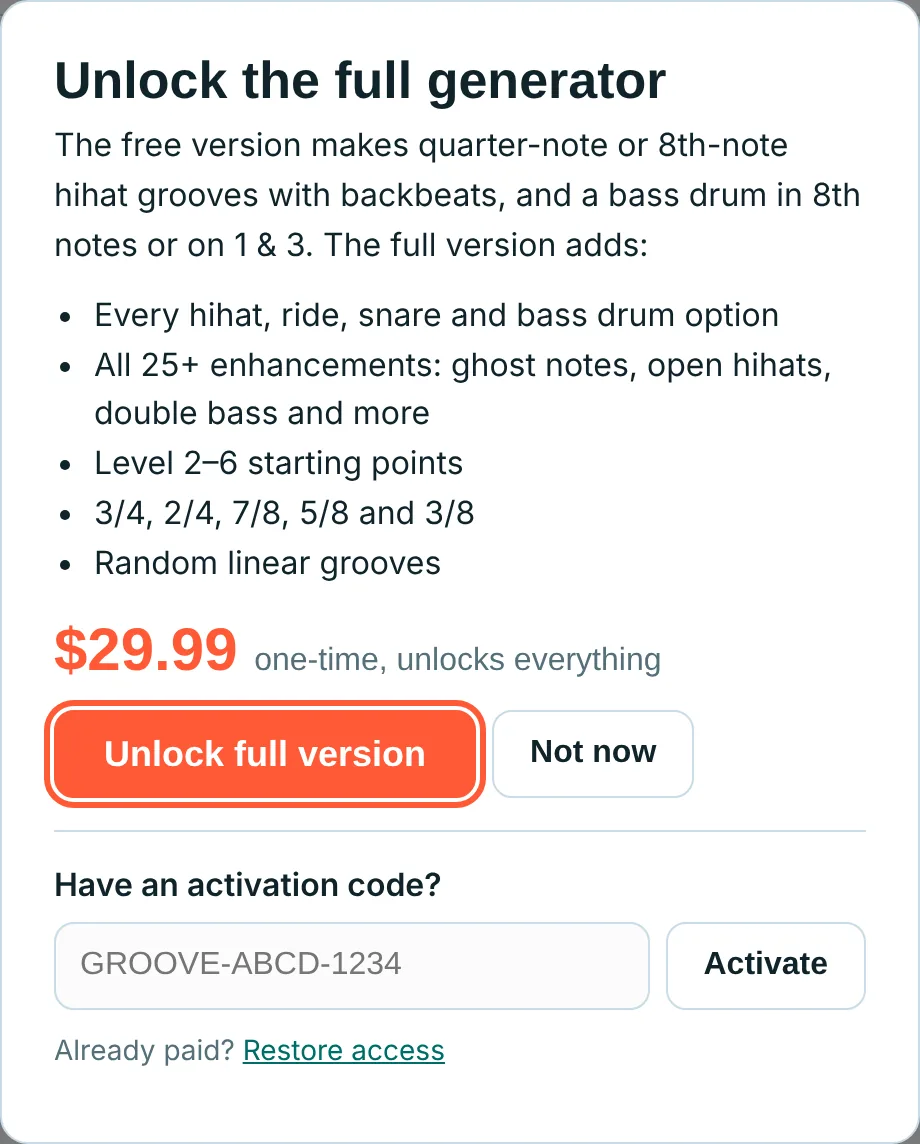
- Buy it online: pay once and it unlocks right away on that device.
- Own the book? Type the activation code printed in the book and click Activate.
- New device or cleared your browser? Click “Restore access” and enter the email you used at checkout, or re-enter your book code.
A tour of the screen
The button row

- New Groove makes a new groove that follows your checkboxes.
- Previous steps back to the groove you just had. Keep pressing it to go further back.
- Print / PDF prints the groove or saves it as a PDF.
- Grid/Tabs, Sheet Music and Both switch how the groove is shown. Your choice is remembered for next time.
The groove
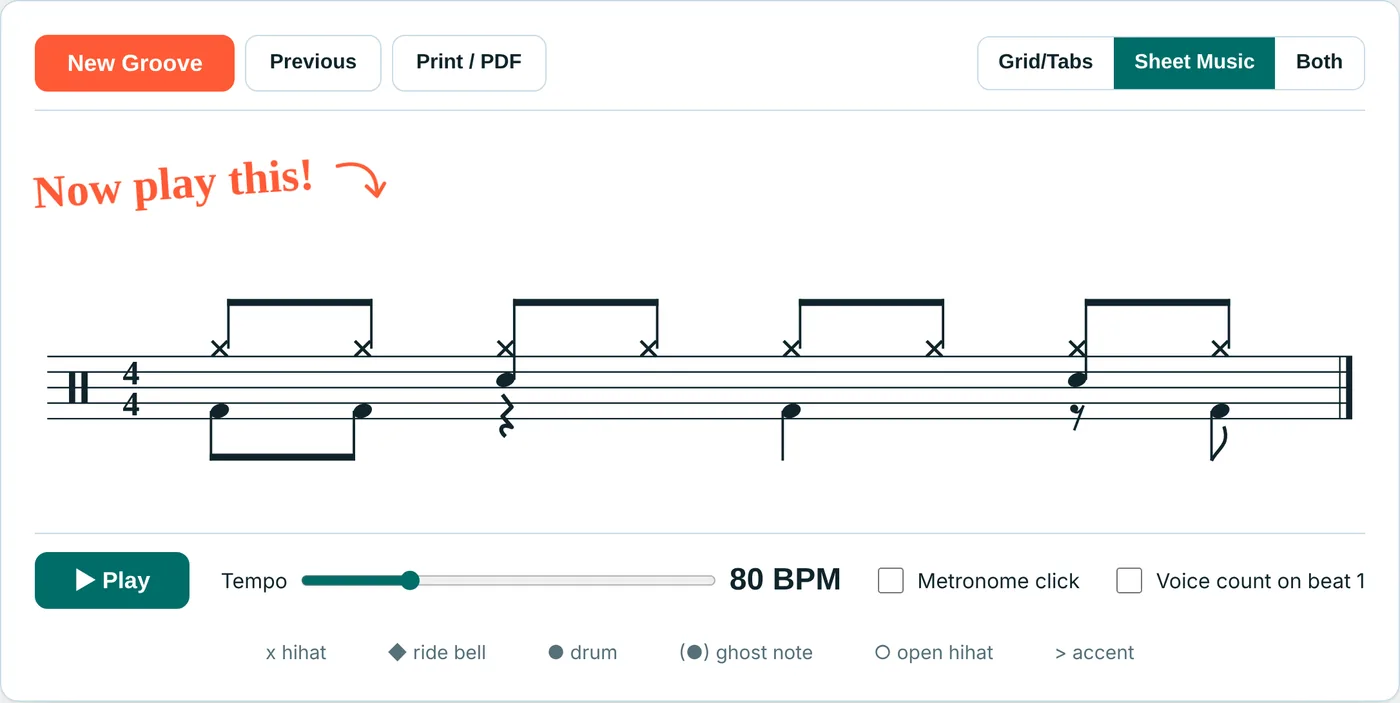
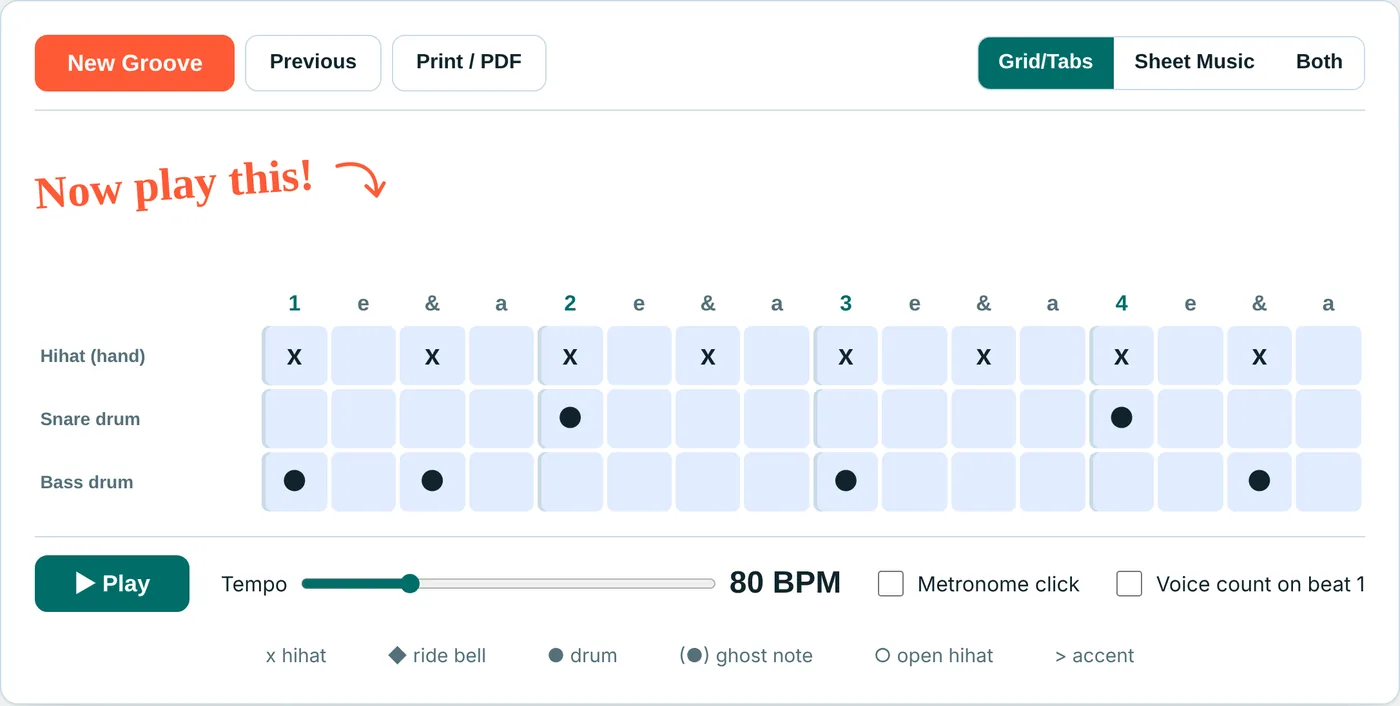
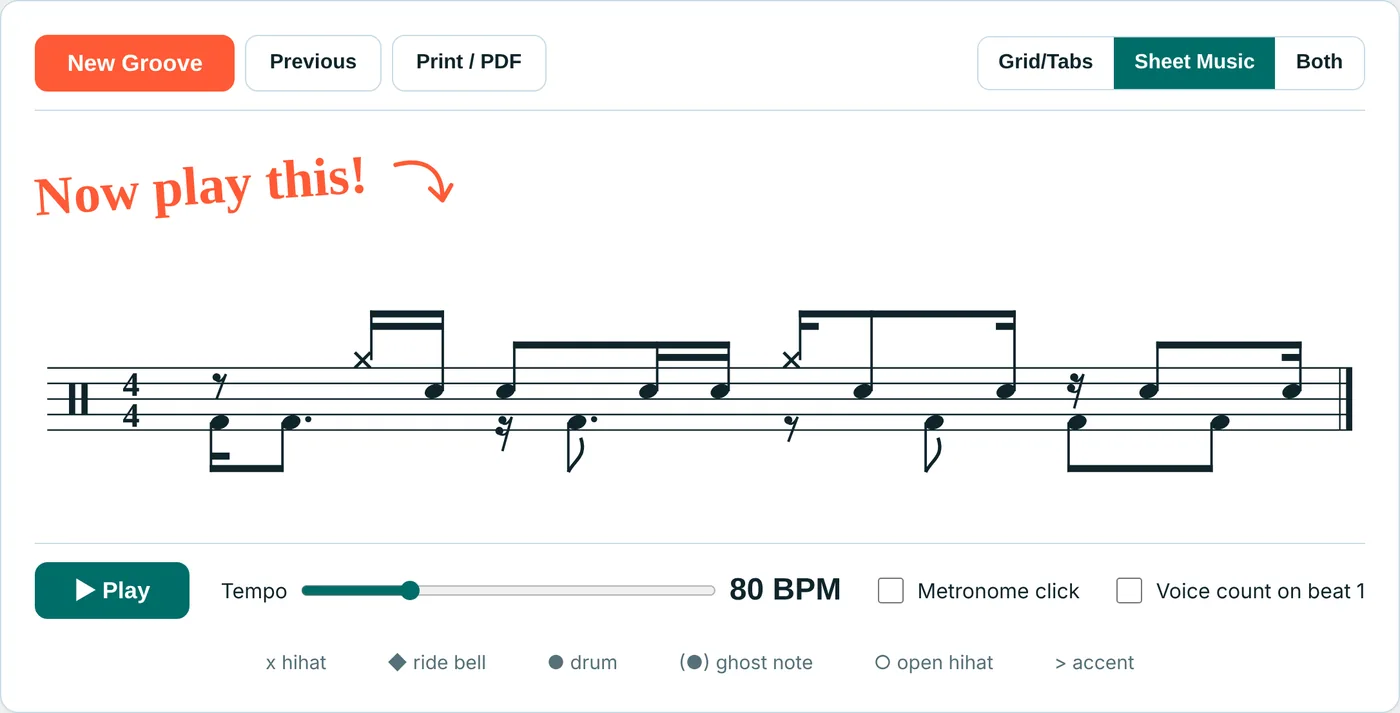
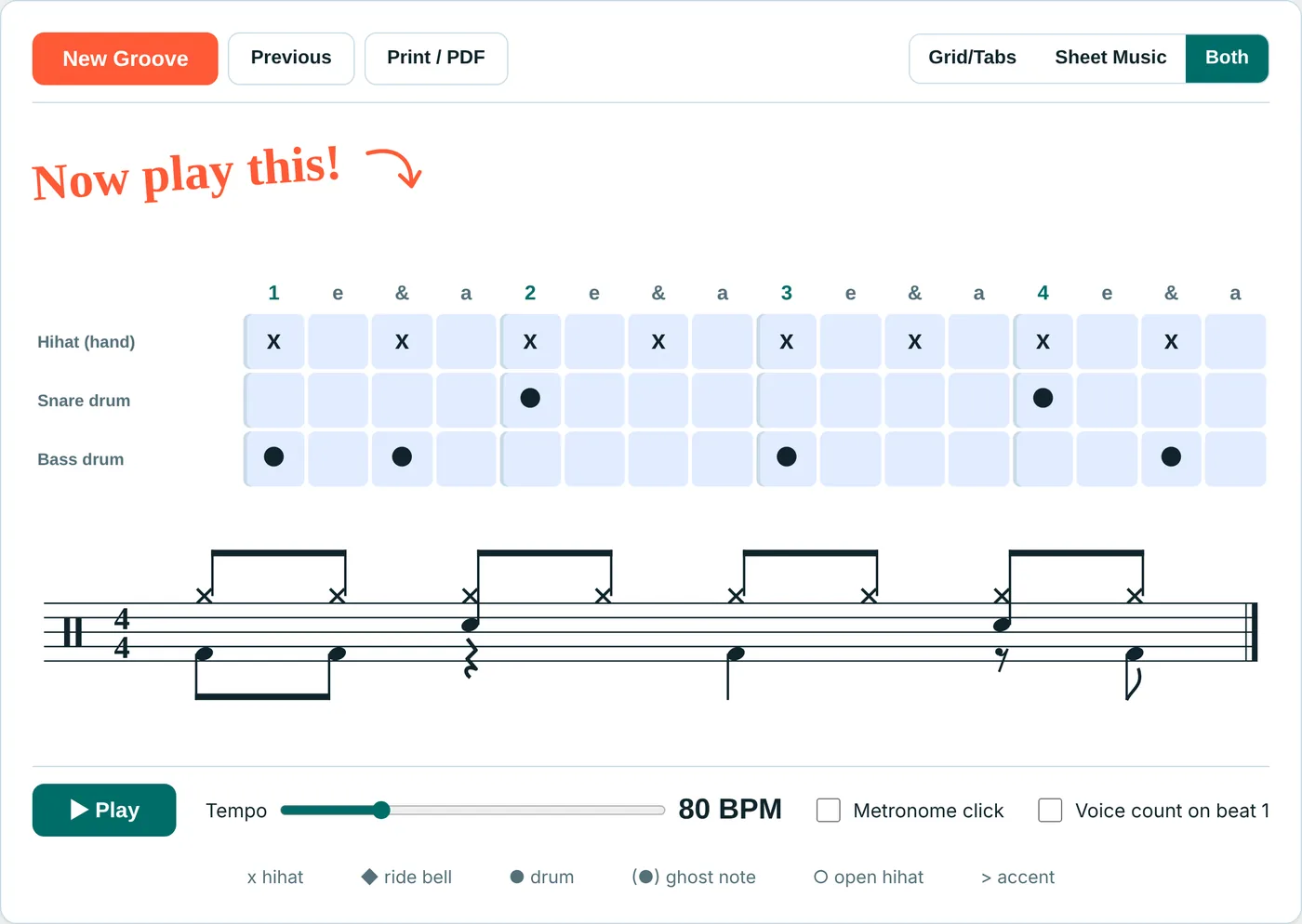
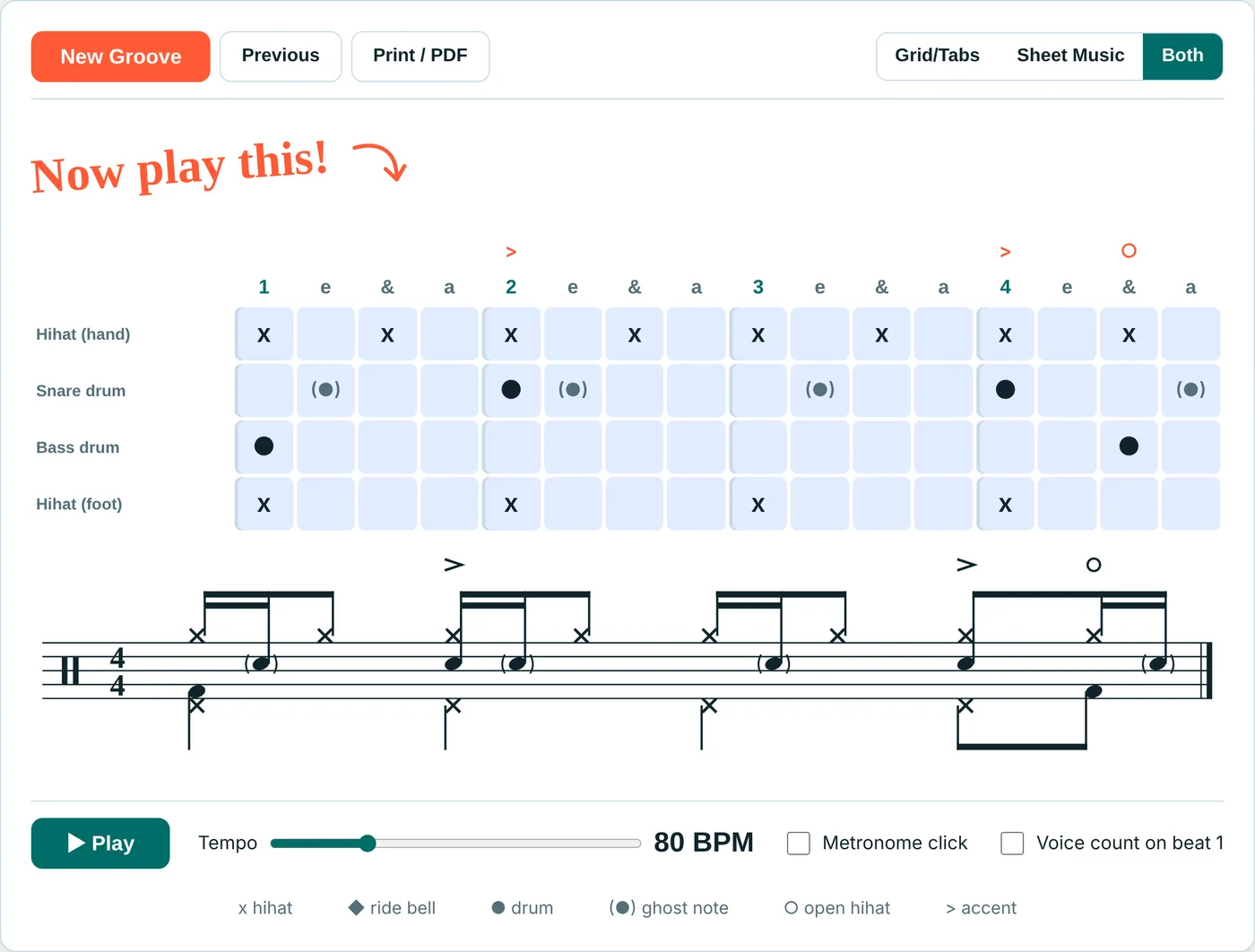
Under the buttons is the groove itself, marked “Now play this!” Here's the same groove in each view:
The play bar

Press Play to loop the groove and Stop to end it. The tempo slider goes from 40 to 200 beats per minute. Metronome click adds a click on every beat, and Voice count on beat 1 says “one” at the start of each measure so you never lose your place. Mute the groove silences the drums so you hear only the click and/or the voice. Try the tempo challenge: mute the groove and the click, keep only the voice on beat 1, and see if you can stay in time between the “ones.” While it plays, the current note lights up in orange. A short key to the symbols sits right below.
Options, Time Signature and Enhancements
Below the groove are the checkboxes that control what you get:
- Options set the foundation: the hihat pattern, the snare pattern, and whether the bass drum stays on 8th notes. You can pick one option per instrument, and choosing a new one turns off the old one.
- Time Signature changes the length of the measure: 4/4 (the default), 3/4, 2/4, 7/8, 5/8 or 3/8.
- Enhancements add detail on top, grouped by instrument: bass drum, snare, hihat and cymbals, and left foot hihat. You can turn on as many as you like.
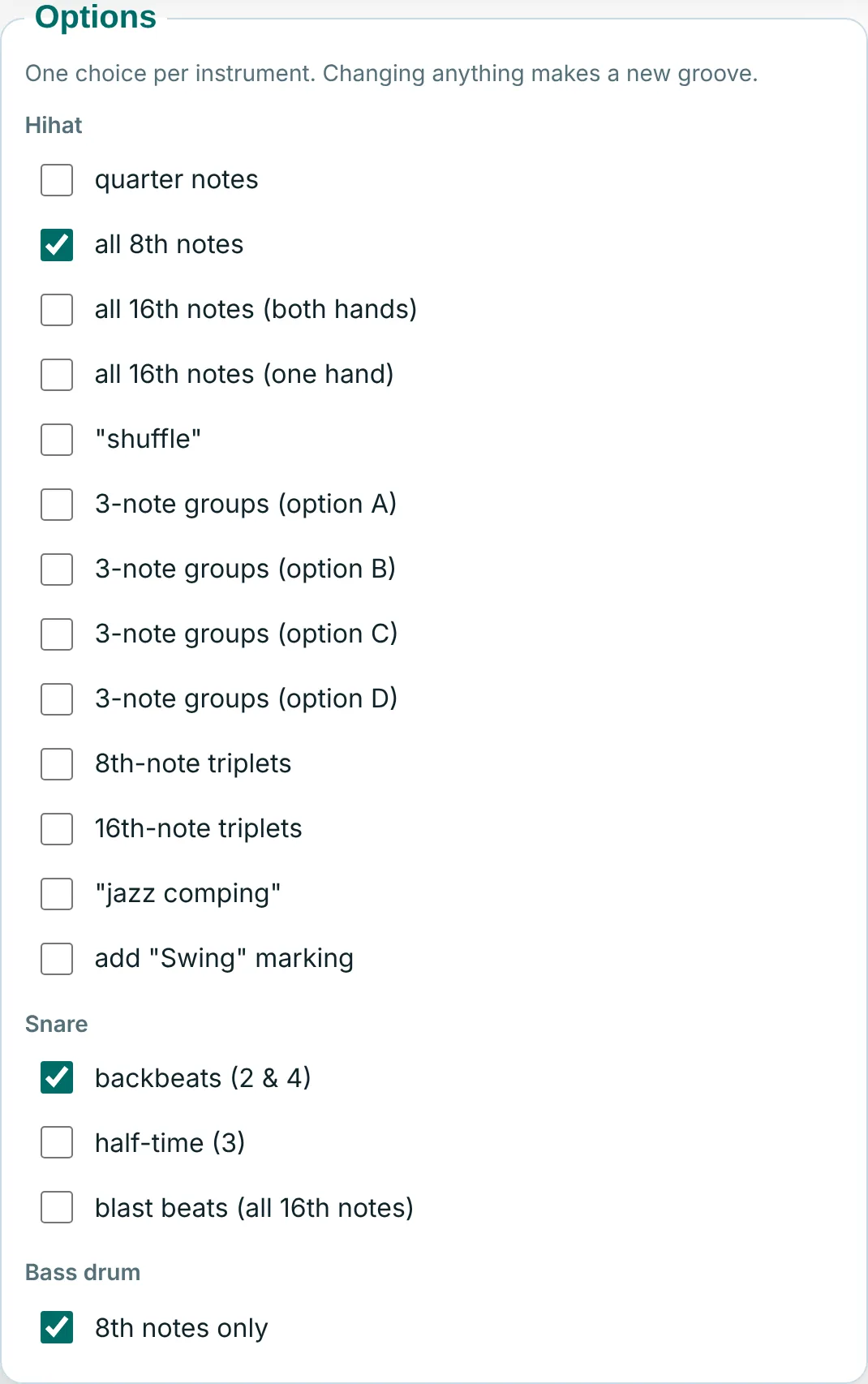
If two settings work against each other, a short orange note appears next to both of them explaining the conflict, so you always know why a groove looks the way it does. Uncheck either one to clear it.

Using the level tabs
The tabs along the bottom of the screen are ready-made starting points: Full generator, then Start at Level 0 through Start at Level 6. Choose a level and the checkboxes that define it lock in place, highlighted and marked “locked.” A note at the top of the page describes the level. Then just click New Groove.


Locked boxes can't be changed while you're on that level, but every other checkbox still works, so you can build on top of a level without losing its foundation. Levels 0 and 1 are intentionally tiny and may only have one possible groove. Want to know what each level means? Read Drumming Levels Explained.
Example: your first custom groove
Say you want to work on 16th note hihat grooves with a normal backbeat. Start on the Full generator tab, then:
- Under Options → Hihat, choose “all 16th notes (both hands).” The 8th note hihat turns off automatically.
- Under Snare, make sure “backbeats (2 & 4)” is checked.
- Leave the two default bass drum enhancements on: “Always bass drum on beat 1” and “No bass drum under snare notes.” They keep the groove grounded.
- Click New Groove. The hihat and snare stay the same, and the bass drum changes every time.
The “both hands” version leaves the hihat out wherever the snare plays, since one hand moves from the hihat to the snare. If you'd rather keep the hihat going over the snare, choose “all 16th notes (one hand).”
That's the whole idea: decide on the skill, set the boxes, and let the generator give you as many examples as you need.
Linear grooves
A linear groove is one where no two drums ever play at the same time. The New linear groove button at the bottom of the Enhancements box clears every checkbox and makes a random linear groove. Check “Always start with a bass drum,” “hihat” or “snare drum” above the button to choose which sound lands on beat 1. It keeps your time signature, so linear grooves in 7/8 or 5/8 are just as easy. In 4/4 alone there are over 43 million possible linear grooves, so set the tempo to your song and keep clicking until one fits.
Reading the sheet music and grid
Sheet music
Grooves are written in standard drumset notation on a five-line staff. Hands have stems up and feet have stems down, so you can see at a glance which limbs are playing. The hihat is written above the staff, the ride cymbal on the top line, the snare drum in the third space, the bass drum in the bottom space, and the left foot hihat below the staff. Beams and rests work just like any printed drum chart, so every click is a new reading exercise.
The grid
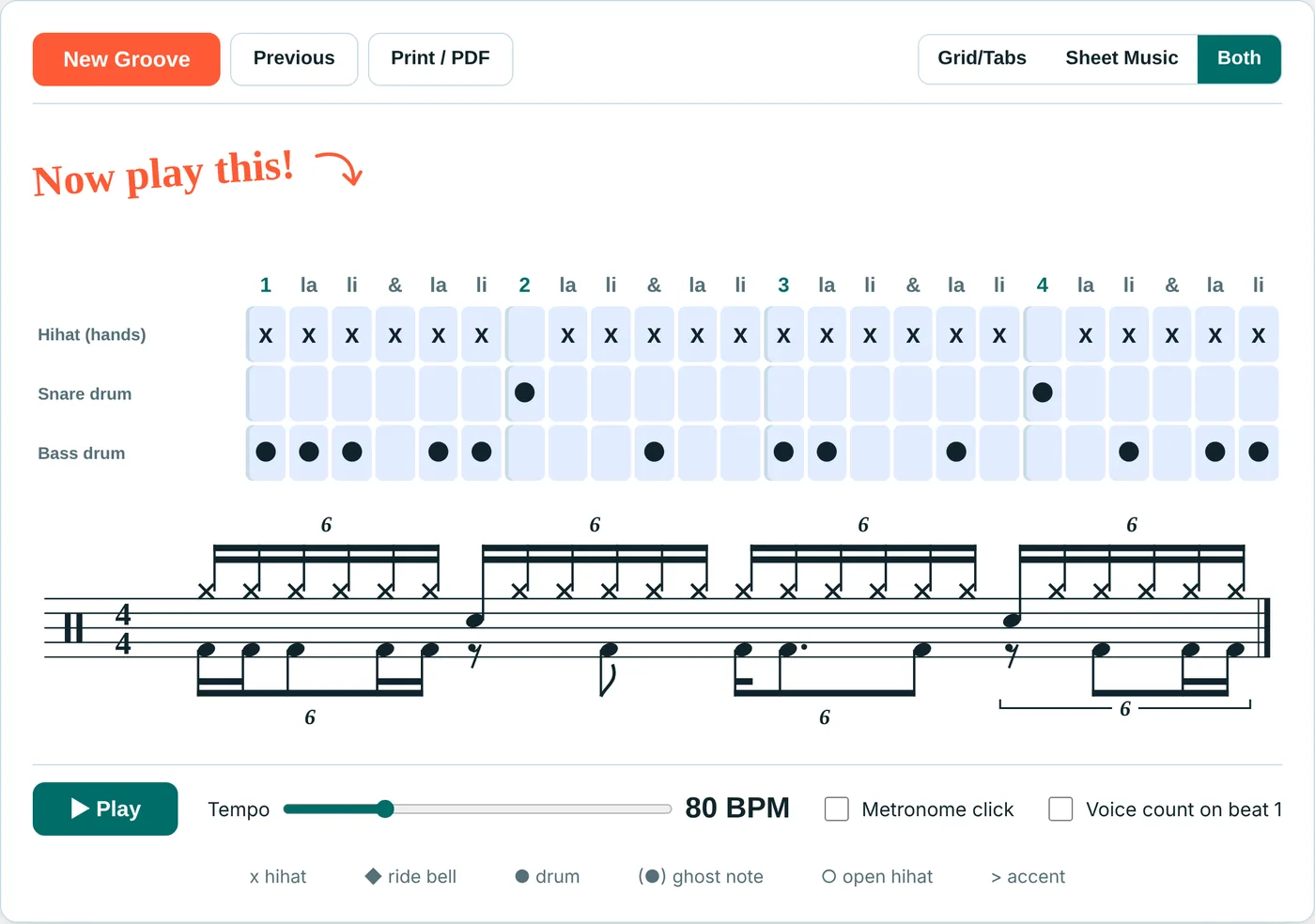
The grid has a row for each instrument (hihat, snare drum and bass drum, plus a left foot hihat row when needed) and a box for every 16th note. The counts are written across the top (1 e & a, 2 e & a…), and a darker line marks the start of each beat. There are no stems, beams or rests to figure out. A box either has a note or it doesn't.
For example, an “x” in every other box starting on beat 1 means 8th note hihats. Drum sounds are short, so a quarter note, 8th note and 16th note all sound about the same length. The grid only needs to show where each note starts.
Drum notation symbols
The generator uses standard drumset notation symbols, the same in the sheet music and the grid:
- x
- A cymbal: hihat or ride cymbal.
- ●
- A drum: snare drum or bass drum.
- (●)
- A ghost note: a very soft snare note underneath the groove. Playback plays these quietly.
- >
- An accent: play this note louder. These appear on the main snare notes when ghost notes are on.
- ○
- Open hihat: let the hihat cymbals “sizzle” on this note.
- ◆
- Ride bell: hit the raised center of the ride cymbal.
- ●●
- A double stroke in the bass drum (shown in the sheet music as a slash through the stem).
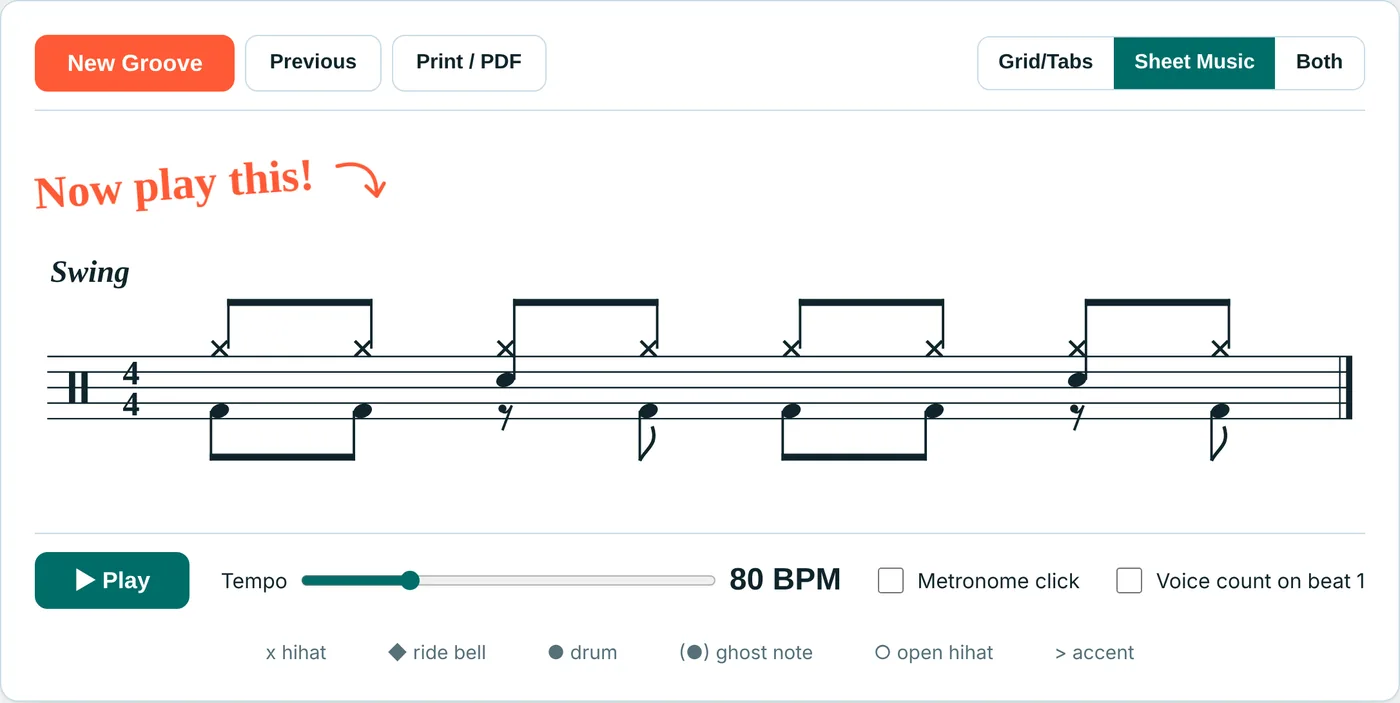
The “add ‘Swing’ marking” checkbox writes “Swing” above the music, just like on a real jazz chart. It tells you to play the 8th notes with a triplet feel, and playback swings the groove so you can hear it.
Triplets
The triplet hihat options (8th-note triplets, 16th-note triplets and jazz comping) are written with a “3” or “6” over each beat, and the grid counts them “1 trip let” or “1 la li & la li.” When the hihat plays triplets, a small choice appears under the bass drum option: the bass drum can follow the triplets, or stay in straight 16th notes for a two-against-three challenge.
Saving and printing grooves
Click Print / PDF to open your browser's print window. Choose a printer to print the groove, or choose “Save as PDF” to keep it as a file. The printout is a clean practice page: the groove in the view you picked, a tempo ladder to track your progress, the settings that made it, and lines for a student name, teacher and due date. That makes it perfect for lesson assignments.
On a tablet or phone, a screenshot is often the fastest way to save a groove you like.
Making the music bigger
The groove automatically fills the width of your screen. On a tablet or phone, turn it sideways or pinch to zoom. On a computer, use Ctrl and + (Command and + on a Mac) to zoom in, and Ctrl/Command and 0 to reset. Choosing Sheet Music or Grid/Tabs instead of Both also makes the groove bigger.
Troubleshooting
Why do I keep getting the same groove?
Your checkboxes may be limiting the possibilities. With 8th note hihat, backbeats and 8th note bass drum there are 256 possible grooves. Keep “Always bass drum on beat 1” and “No bass drum under snare notes” on (the default), and that drops to 32. Levels 0 and 1 may only have one possible groove. Uncheck an option, or move up a level, for more variety.
My grooves sound too simple.
The more rules you turn on, the simpler the grooves get. Look for options that are limiting things, like “8th notes only” on the bass drum, and uncheck them to open up 16th note possibilities.
I can't get the exact groove I'm looking for.
The generator makes random variations inside your rules. It doesn't look up one specific groove. A 16th note bass drum line alone has over 65,000 possibilities, so an exact match is unlikely. Set your boxes to the general idea and audition variations until one feels right.
Why is there an orange note next to a checkbox?
Two of your selections conflict. The note explains which checkbox it conflicts with and why. The generator still works, but one setting takes priority. Uncheck either one to clear the note.
Some checkboxes are grayed out or say “locked.”
You're on a level tab. The boxes that define that level are locked, and other choices for the same instrument are grayed out. Click the “Full generator” tab to unlock them.
Some checkboxes say “Full version.”
Those are part of the full version. Click one to see the unlock options, or unlock the full version here. Book owners can type their activation code under “Have an activation code?”
Why don't I hear anything when I press Play?
Check that your device volume is up and that it is not on silent. On iPhones and some iPads, the silent switch mutes website audio. If it still doesn't start, press Stop and then Play again.
How do I reset the groove generator?
Click the “Full generator” tab at the bottom of the screen, or reload the page. Both return to the default setup: 8th note hihat, backbeats, 8th note bass drum, “Always bass drum on beat 1,” and “No bass drum under snare notes.” Your unlock is not affected.
Can I export grooves into notation software?
Not directly, but you can save any groove with Print / PDF and then copy it into your notation software. Because the generator already writes standard drumset notation, this is usually a simple copy.
Quick glossary
- Groove
- A repeated rhythmic pattern that forms the foundation of a musical feel.
- Backbeat
- Snare drum on beats 2 and 4, the core of most modern grooves.
- Half-time
- A feel where the snare moves to beat 3, making the groove feel half as fast.
- Ghost note
- A very soft snare note that adds texture under the main groove.
- Accent
- A note played louder than the notes around it.
- Linear groove
- A groove where no two drums or cymbals play at the same time.
- Four on the floor
- Bass drum on every beat.
- Sizzle / open hihat
- Letting the hihat cymbals ring against each other.
- Ruff
- A quick figure of grace notes leading into a main note.
- Swing
- Playing 8th notes with an uneven, triplet-based feel.
- Time signature
- How many beats are in a measure. 4/4 has sixteen 16th notes; 7/8 has fourteen.
- Tempo / BPM
- The speed of the music, in beats per minute.
Want the whole system? Get the full User Guide.
This Lite Guide gets you started. The printed User Guide shows you how to turn the generator into a complete practice and teaching system:
- Every checkbox explained, one by one, with when to use it
- How the generator decides each note, and how to design your own exercises
- Step-by-step workflows for building exercises
- Daily practice, warm-up and sight-reading routines
- Teaching plans and ways to turn grooves into lesson assignments
- Which settings build which techniques: doubles, triples, ghost notes and foot control
- Writing and composing with the generator
- A level-up path from Level 0 to Level 6
- A full glossary of drum and website terms
- An activation code that unlocks the full version